
Open your Excel Workbook, click on the Data tab above the ribbon, then select
Get Data > From Other Sources > From Table/Range
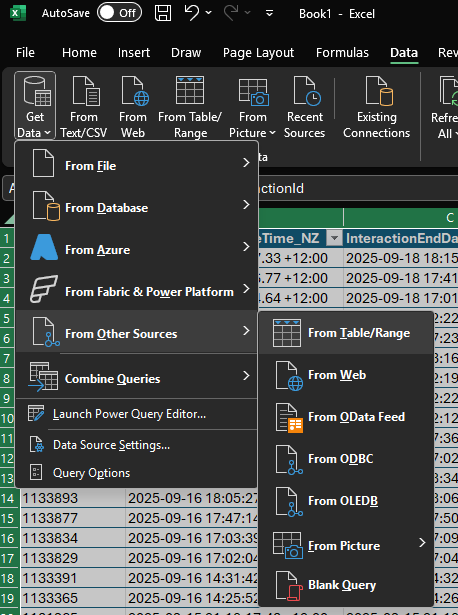
This will open a Power Query window, where the magic happens.
Within Power Query, select the LabelValuePairs column.
This is the column containing all relevant interaction results information collected by ContactSuite, and our job is to transform it so it's divided into multiple highly readable columns.
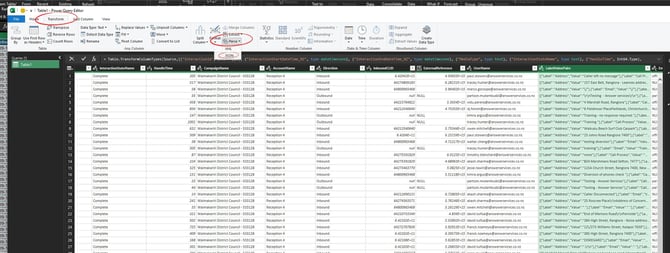
Click on the Transform tab, then
Parse > JSON
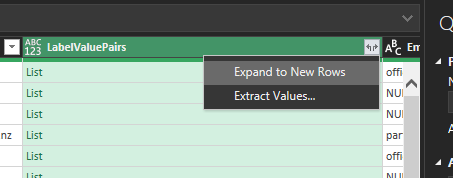
Hover over to the LabelValuePairs column, click on the small icon with two arrows  and choose the Expand to New Rows option
Now click on the small icon with two arrows again and this time add labels
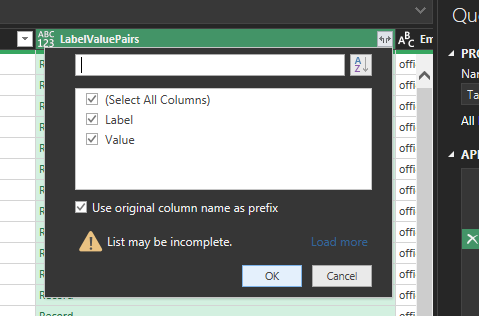
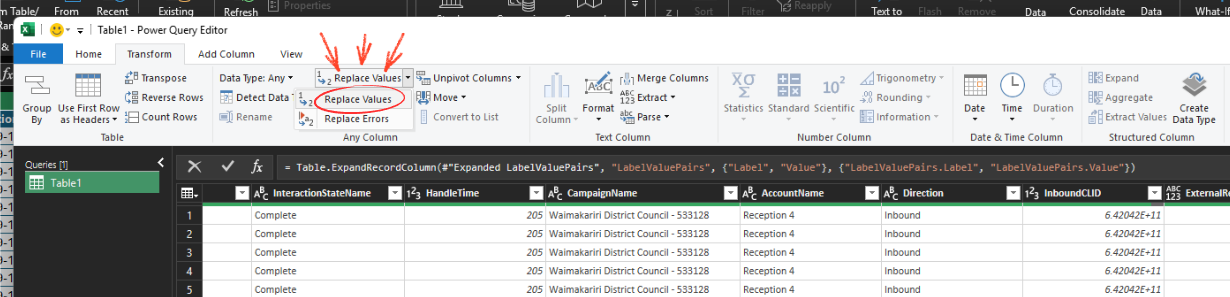
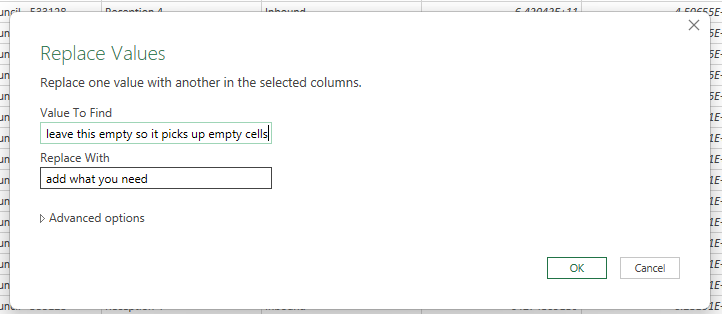
After you Expand to New Rows and add labels, take a minute to review the newly created columns. If you find any empty cells (it means it didn't have a Label in ContactSuite) you can use the Replace Values function to add whatever Label you need to have in your report.
Next (you are almost there) you need to Pivot the column, so all the split data goes onto the same row - this is essential to make the report more readable for our clients.
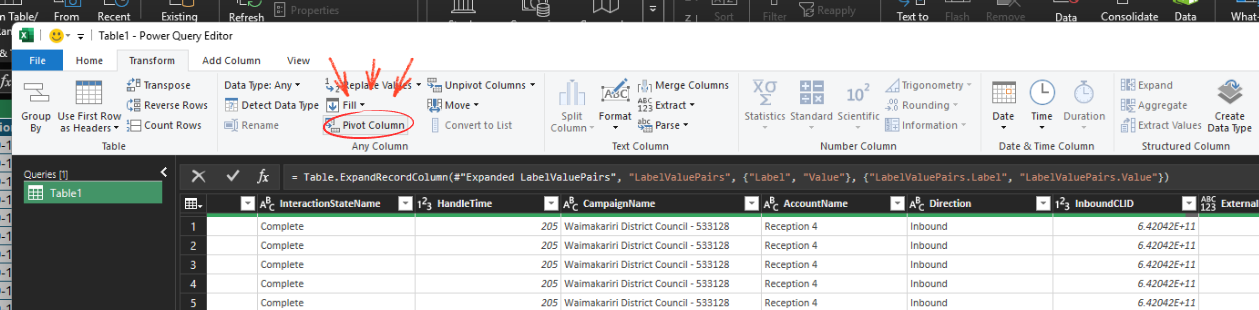
After you click on Pivot Column, a new pop-up up window will come up.
Click on Advanced Options, then select Don't Aggregate from the dropdown menu.
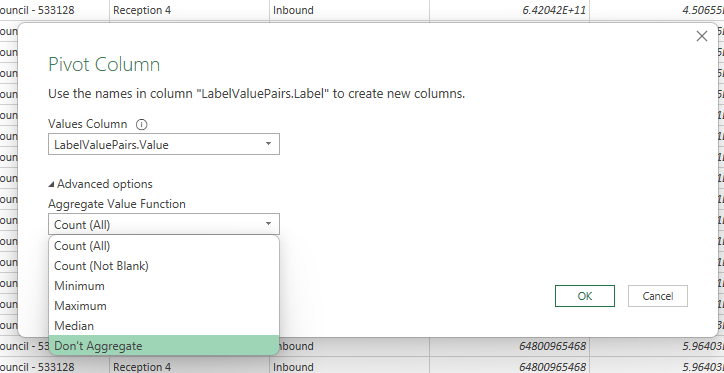
Click OK and watch your table transform.
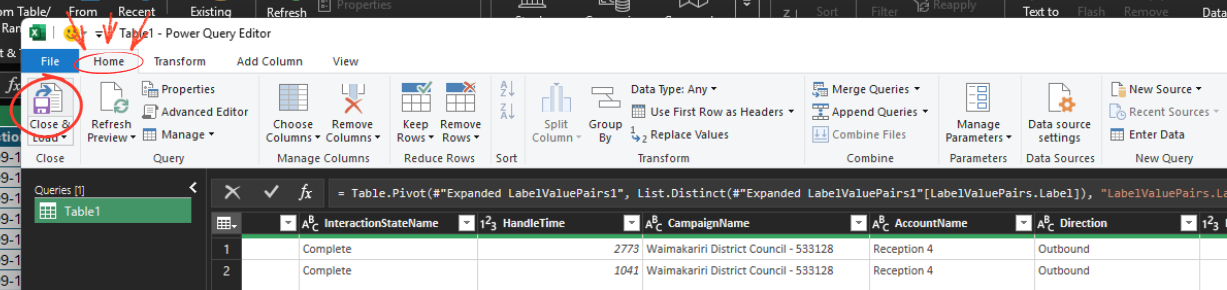
Now you can click on the Home tab, and click on the Close & Load icon.
That's it.
Now you can keep tidying up your Excel Workbook and eliminate any columns that should not be included in your client report.